

Download Turbo File Uneraser – Free File Recovery Tool for Windows
Item ID: 412389 | Category: File Managers | Developer: VideoDownloader | Version: 1.0.0
Turbo File Uneraser is a lightweight, free file recovery software designed for Windows users who need to retrieve accidentally deleted files. Whether you've emptied the Recycle Bin or used the command line to delete files, this tool can help restore them before they're permanently lost. It scans your system quickly and displays detailed file information such as size, creation date, and recovery status. While it currently doesn't support external storage devices like USB drives or cameras, its core functionality makes it a reliable choice for internal drive recovery. With a simple interface and no installation required, Turbo File Uneraser is ideal for users seeking a secure, fast, and hassle-free solution to recover lost data.
Why Turbo File Uneraser Stands Out Among Free Recovery Tools
When it comes to recovering deleted files on Windows, many users are left frustrated by the limitations of built-in tools like the Recycle Bin or the lack of accessible recovery options after permanent deletion. Turbo File Uneraser steps in as a powerful yet lightweight solution that fills this gap. Unlike many complex recovery tools that require technical know-how, Turbo File Uneraser offers a straightforward interface that even beginners can navigate with ease. The software is designed specifically for Windows, ensuring seamless integration with the operating system’s file structure.
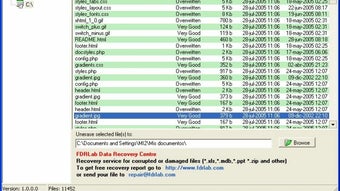
One of the standout features of Turbo File Uneraser is its ability to recover files that were deleted through the command line using commands like del or rd. These deletions often bypass the Recycle Bin entirely, making them seem unrecoverable. However, Turbo File Uneraser can detect and restore such files as long as they haven’t been overwritten by new data. The tool performs a deep scan of your hard drive partitions, identifying files that are still physically present on the disk but marked as deleted. It then presents a clear list of recoverable files, complete with metadata such as file size, creation date, and current status—helping you make informed decisions about which files to restore.
Another major advantage is the software’s portability. Turbo File Uneraser doesn’t require installation, meaning you can run it directly from a USB drive or desktop. This makes it perfect for emergency recovery scenarios where you might not have admin rights or want to avoid cluttering your system. The entire process is secure and does not alter the original file content during scanning, ensuring that your recovered data remains intact and uncorrupted. For users seeking a reliable, no-cost solution to retrieve lost documents, photos, or projects, Turbo File Uneraser delivers real value without compromise.
How to Use Turbo File Uneraser: Step-by-Step Guide
Using Turbo File Uneraser is incredibly simple, making it accessible even to non-technical users. To begin, download the free software from the official website. Since it’s a portable application, there’s no need to install it—just extract the files and run the executable. Once launched, the interface presents a clean, minimalistic layout with a single scan button and a file list pane.
Start by selecting the drive or partition from which you want to recover files. Turbo File Uneraser supports local drives such as C: and D:, but currently does not scan external storage devices like USB flash drives, SD cards, or digital cameras. After selecting the target drive, click the “Scan” button. The tool will begin analyzing the disk for deleted files, which may take a few minutes depending on the drive size and the number of files.
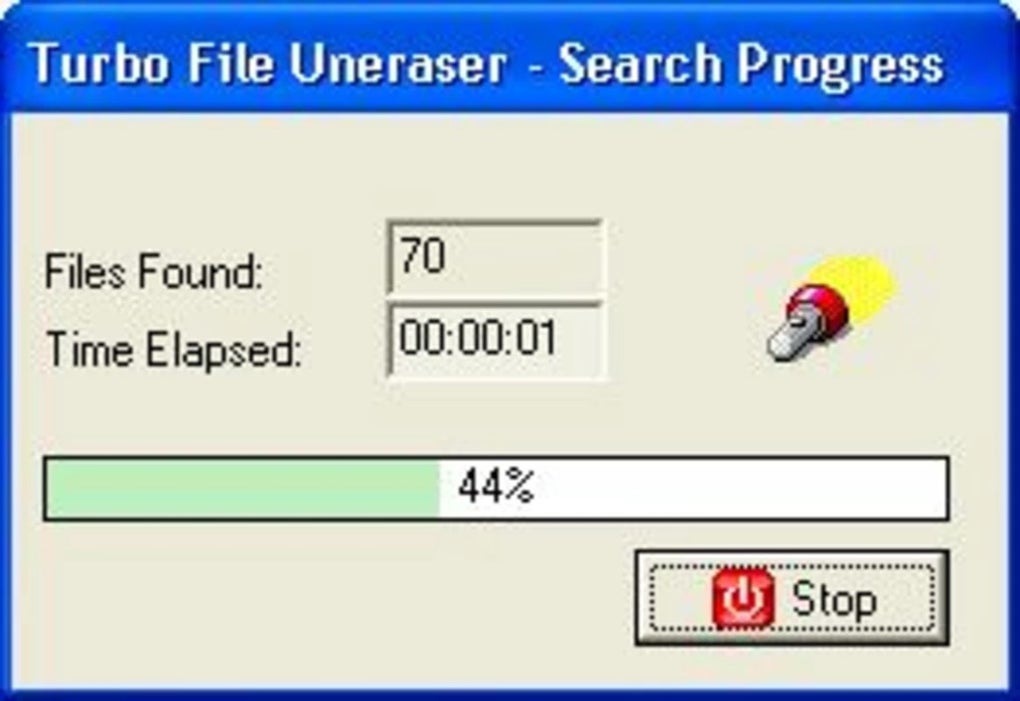
As the scan progresses, you’ll see a real-time update of found files. Once complete, Turbo File Uneraser displays a comprehensive list of recoverable files, each with details like file name, size, creation date, and recovery status. You can filter results by file type (e.g., documents, images, videos) or sort them by date or size. To restore a file, simply select it and click the “Recover” button. Choose a safe location on your system—preferably not the same drive you’re recovering from—to avoid overwriting other deleted data.
It’s crucial to act quickly after deletion, as new data written to the disk can overwrite the space occupied by deleted files, making recovery impossible. Therefore, it’s recommended to use Turbo File Uneraser as soon as you realize a file has been lost. The software also includes a preview feature for certain file types, allowing you to confirm the file’s integrity before recovery. This ensures you’re not wasting time restoring corrupted or incomplete files.
Compatibility, Features, and Limitations
Turbo File Uneraser is compatible with all major versions of Windows, including Windows 10, Windows 11, and Windows Server editions. It runs smoothly on both 32-bit and 64-bit systems and requires minimal system resources, making it suitable for older or low-spec machines. The software is designed to work exclusively with internal hard drives and SSDs, but it does not currently support external storage devices such as USB drives, memory cards, or external hard drives. This limitation may be a drawback for users who frequently lose files from portable media.
Key features of Turbo File Uneraser include:
- Portability – No installation required; runs from USB or desktop
- Deep scanning algorithm for detecting deleted files
- Recovery of files deleted via command line or Recycle Bin
- Detailed file information: size, creation date, recovery status
- Preview function for common file types
- Safe recovery process that doesn’t alter original data
While the tool excels in its core functionality, it’s important to note its limitations. The lack of support for external drives is a significant gap, especially for photographers, students, or professionals who rely on portable storage. Additionally, Turbo File Uneraser does not offer advanced recovery modes like sector-level recovery or recovery from formatted drives. However, for basic file recovery on internal Windows drives, it performs reliably and efficiently.
Pros and Cons at a Glance
Pros
- Lightweight and fast scanning with minimal system impact
- Free to download and use with no hidden costs
- Portable – no installation needed; ideal for emergency use
- User-friendly interface suitable for beginners
- Supports recovery from command-line deletions, not just Recycle Bin
Cons
- Does not support external storage devices like USB drives or SD cards
- No advanced recovery features for formatted or corrupted drives
- Limited file preview options; not all file types are supported
- No built-in backup or scheduling options
Frequently Asked Questions (FAQ)
Can Turbo File Uneraser recover files deleted from the Recycle Bin?
Yes, Turbo File Uneraser can recover files that were deleted from the Recycle Bin. As long as the file space hasn’t been overwritten, the software can detect and restore them. It’s best to act quickly after deletion to maximize recovery chances.
Does Turbo File Uneraser work on external drives?
No, Turbo File Uneraser currently does not support data recovery from external storage devices such as USB flash drives, SD cards, or external hard drives. It is designed exclusively for internal Windows drives.
Is Turbo File Uneraser safe to use?
Yes, Turbo File Uneraser is safe to use. It operates in read-only mode during scanning, meaning it does not modify or damage existing data. Your original files remain untouched until you manually choose to recover them.
Can I recover files deleted using the command line?
Yes, one of the key strengths of Turbo File Uneraser is its ability to recover files deleted via command-line tools like del or rd. These deletions bypass the Recycle Bin, but the software can still locate and restore them if the data hasn’t been overwritten.
How often should I update Turbo File Uneraser?
While Turbo File Uneraser is a stable tool, it’s recommended to check for updates periodically. New versions may include performance improvements, bug fixes, or expanded compatibility. You can download the latest version from the official website.
Final Verdict: A Must-Have Free Recovery Tool for Windows Users
Turbo File Uneraser is a reliable, free, and secure file recovery tool that fills a critical gap for Windows users. Its ability to recover files deleted from the Recycle Bin or via command line makes it a valuable asset for anyone who’s ever lost important documents, photos, or projects. While it doesn’t support external drives, its core functionality is robust and efficient, especially for internal drive recovery.
With a simple interface, no installation required, and fast scanning, Turbo File Uneraser stands out among free file recovery software. It’s ideal for students, professionals, and casual users alike who need a quick and trustworthy solution. If you’re looking for a secure, lightweight, and easy-to-use tool to recover lost data on Windows, download Turbo File Uneraser today and protect your digital life from accidental loss.
Download now and recover your lost files with confidence.







